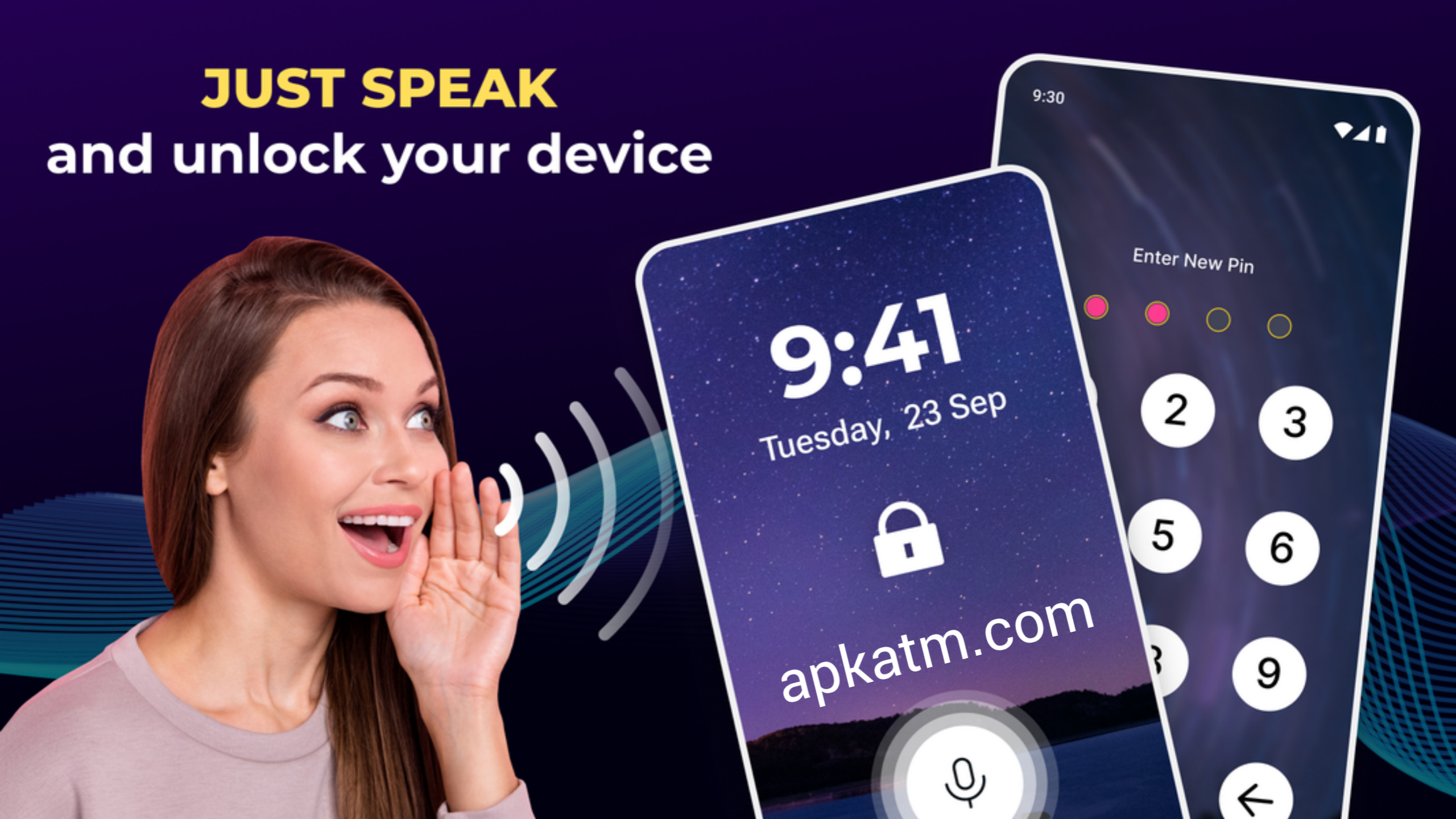
Smartphone security is evolving fast, and voice-based features are becoming more popular than ever. Many Android users wonder whether it’s possible to unlock an Android mobile phone using voice commands. The good news is: yes, you can unlock your Android phone with voice, using built-in Google features and trusted apps—safely and easily.
In this guide, we’ll explain how voice unlocking works, step-by-step methods, and important safety tips.
Can You Unlock an Android Phone with Voice?
Android does not allow full voice unlocking by default for security reasons. However, you can unlock or access your phone using Google Assistant’s Voice Match, Smart Lock, or third-party apps.
These methods don’t completely remove your password or PIN but provide hands-free access in trusted situations.
Method 1: Unlock Android Phone Using Google Assistant (Voice Match)
Google Assistant allows limited phone access using your voice when Voice Match is enabled.
Steps to Enable Voice Match:
- Open Settings on your Android phone
- Go to Google → Settings for Google apps → Search, Assistant & Voice
- Tap Google Assistant
- Select Hey Google & Voice Match
- Turn on Hey Google
- Train your voice by following the instructions
Once enabled, you can say:
“Hey Google, unlock my phone”
⚠️ Note: This works best when your phone is already awake or in trusted environments.
Method 2: Use Smart Lock with Voice Assistance
Smart Lock keeps your phone unlocked in trusted conditions, making voice commands more useful.
How to Enable Smart Lock:
- Go to Settings → Security → Smart Lock
- Enter your PIN or password
- Choose one of the following:
- Trusted Places (like home)
- Trusted Devices (Bluetooth devices)
- On-Body Detection
Once Smart Lock is active, you can use voice commands without re-entering your password repeatedly.
Method 3: Third-Party Apps for Voice Unlock
Some apps offer voice-based unlocking features.
Popular Voice Unlock Apps:
- Voice Screen Lock
- Voice Lock Screen
- Smart Voice Lock
How to Use:
- Install a trusted app from Google Play Store
- Set a custom voice password
- Grant required permissions
- Use your voice to unlock the phone
⚠️ Security Tip: Avoid apps that ask for unnecessary permissions or come from unknown developers.
Is Voice Unlock Safe?
Voice unlocking is convenient but not as secure as fingerprints, PINs, or face recognition.
Pros:
✔ Hands-free access
✔ Useful for accessibility
✔ Fast in trusted environments
Cons:
✖ Can be fooled by recordings
✖ Not ideal for sensitive data
✖ Depends on environment noise
Best Practice: Use voice unlock only as a secondary or convenience feature.
Best Security Tips for Voice Unlock
- Always keep a PIN or fingerprint as backup
- Use voice unlock only in trusted places
- Keep your Android phone updated
- Avoid unknown or modded apps
- Disable voice unlock when traveling
Final Thoughts
Unlocking an Android mobile phone with voice is possible and easy when done correctly. While it’s not the most secure option, it can be very useful for accessibility and hands-free situations. By combining Google Assistant, Smart Lock, and safe apps, you can enjoy voice-based unlocking without compromising security.
If you value convenience with safety, voice unlocking can be a smart addition to your Android experience.
Download 👇🏻